
Brand the shopper experience
For a new waiting room, choose Customize branding in the Appearance step. QueueFront saves the room as a private draft before opening the editor. For an existing room, choose Edit appearance.
Work through Appearance, Messages, Logo & images, and Queue progress. Start with the theme defaults, then make the room feel like your store.
1. Choose the appearance
Section titled “1. Choose the appearance”In Appearance, choose Centered card, Split image and message, Orbit, Studio, or Midnight. Check the preview after changing a layout: the same image and message can occupy different space.
Choose Theme palette for the layout’s coordinated colors, or Custom brand colors to set your own:
- Accent: highlights labels and controls.
- Page background: the area behind the waiting-room card. A background image replaces this color.
- Card: the surface behind your message.
- Text: the main shopper-facing copy.
The contrast guidance helps spot hard-to-read combinations. If a warning appears, choose Use readable text to pick light or dark text against the card, or adjust the colors yourself. Recheck image backgrounds and both preview sizes; the contrast check does not evaluate every pixel of a photograph.
2. Write the messages
Section titled “2. Write the messages”In Messages, review the heading and main message, context label, countdown wording, admitted message, and sold-out message. Follow the field limits shown by the editor.
- Before admission: explain why shoppers are waiting and what happens next.
- Admitted: make the action and checkout window clear.
- Sold out: explain that the release has no available stock; do not imply that remaining in the room reserves a product.
- Context label: use the product/event name or a short custom label that helps identify the release.
Keep instructions short. Do not promise a guaranteed wait, position, stock reservation, or completed purchase.
3. Add your logo and images
Section titled “3. Add your logo and images”In Logo & images, choose Store name, Custom logo, QueueFront, or No logo.
For your own logo:
- Choose Custom logo, then Upload or choose image.
- Select an existing image in Shopify Files or upload a new one. A transparent PNG with extra whitespace trimmed works well.
- Choose Small, Medium, or Large logo size. Images keep their proportions.
- Set logo padding to Theme default, None, Small, or Roomy, then check the mobile preview.
For the header, use the offered product image, product slideshow, custom Shopify image, or No header image. Entire Store uses store imagery from Shopify Files rather than a protected product’s image.
Use the Shopify image picker for custom header/background imagery. A product slideshow needs at least two usable images; otherwise the view falls back to one. Choose a background color or an image and check text contrast over the complete image, not just its center.
If an image is absent, confirm the selected Shopify file/product imagery is still available, save again, and inspect the actual shopper route. Avoid important text baked into a small image.
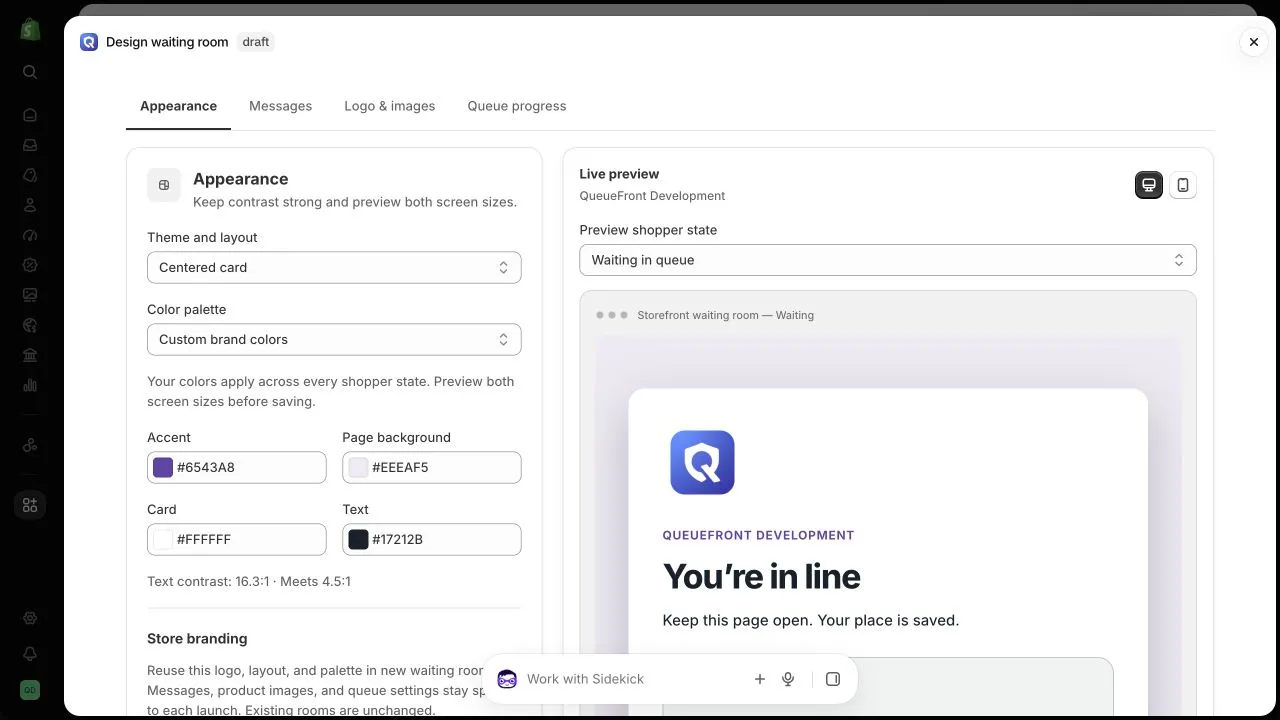
Current editor captured in an unpublished development-store draft on October 28, 2026. The logo and palette are illustrative; your store and saved design will appear here.
4. Set queue progress
Section titled “4. Set queue progress”In Queue progress, choose whether progress is Off, monitored but hidden, or shown to shoppers. Review the offered format: people ahead, position, position and total, estimated wait, or a minimal display. Choose estimated-wait visibility and the motion/confirmation treatment.
A randomized admission rule may not support a meaningful fixed place in line. Match the display to the admission rule; estimates should appear only when reliable. Progress and reconnect explains display availability, fallback, and inactive visitors.
Reuse your store branding
Section titled “Reuse your store branding”In Appearance, select Use this design as store branding, then save. New waiting rooms start with that logo, logo size and padding, layout, and palette.
Existing rooms are unchanged. Messages, product imagery, and queue settings remain specific to each launch. To reuse the defaults in an existing room, open its editor and choose Apply saved store branding; preview the result and save it when ready. Applying defaults alone does not publish a room.
Optional footer and HTML
Section titled “Optional footer and HTML”The advanced footer is limited to 240 characters. Custom HTML is limited to 4,000 characters and supports basic paragraphs, emphasis, lists, and line breaks. Scripts, styles, embedded content, links, and attributes are not supported there. Use the regular editor fields for ordinary messaging; this is not a custom website builder.
Quick fixes
Section titled “Quick fixes”- The logo looks too small: trim transparent margins in the source image, or increase Logo size. Padding controls the space around the image, not its proportions.
- My colors are not showing: choose Custom brand colors. Check whether a background image is covering the page background color.
- An older room did not pick up my branding: saved store branding applies to new rooms. Use Apply saved store branding in the older room, then save.
- The logo disappeared: confirm the selected Shopify file still exists, then choose the image again.
Preview, save, and verify
Section titled “Preview, save, and verify”- Inspect countdown, waiting, admitted, and other configured states using the preview selector.
- Switch between desktop and mobile. Check cropped imagery, long headings, readable contrast, and the primary action.
- Save and read the result. A draft design remains private. Saving changes to an already published room can show Publish waiting-room changes? and update shoppers immediately.
- Close and reopen the editor to confirm the saved design.
- Check the actual shopper route after publication. The designer preview does not prove theme or checkout integration.