
Defaults, triggers, and sending
Signup text, notification content, sender settings, and the condition that triggers an update are separate parts of a waiting list.
Set store defaults
Section titled “Set store defaults”- In Waiting Lists → Settings, open Signup and email defaults.
- Set the signup heading, button label, and signup message.
- Set the email subject, heading, button, message, accent color, and optional HTTPS logo/image URL.
- Choose Save defaults and reopen the page to verify.
- Review a list that follows defaults and its storefront/email previews.
Defaults apply to new lists and lists that follow store defaults. They do not automatically replace list-specific overrides. A change to a default can affect multiple following lists, so review active lists before saving broad copy changes.
Customize one list
Section titled “Customize one list”Open Edit for the list. Choose whether it follows Use store notification defaults or has its own content. Work through Signup, Email, and Placement. Review desktop/mobile previews and save.
For a draft, use Save draft while preparing, then Publish waiting list when ready. A published list can show Save changes or Save and keep published; those changes can appear on its published form. Do not assume every save stays private.
Choose when to notify
Section titled “Choose when to notify”- A product/variant waiting list is tied to the applicable back-in-stock availability condition.
- A room-linked list can notify when the Waiting room opens or Admissions begin, according to its configured trigger.
- A room opening can precede admission when a pre-queue is configured. Choose the event shoppers actually requested an update about.
Room-linked list controls are available in the room’s optional waiting-list/notification section. Review its content, signup option, and trigger there. A notification never reserves stock or admission.
Send an eligible notification manually
Section titled “Send an eligible notification manually”- Check sender readiness, sending preference, list state, and allowance.
- Make sure the relevant availability or waiting-room condition is already active.
- On the list, choose Notify now when available.
- Read the confirmation and choose Notify eligible shoppers only when ready.
- Check the result and a controlled recipient inbox. The action skips shoppers who already received that notification or otherwise fail eligibility.
Pause or resume a list
Section titled “Pause or resume a list”Choose Pause on the intended active list and verify its state. Notifications already processing may still arrive. To resume, open Edit, review the configuration, and publish again. Removing the theme block or turning off sender preferences is a separate action.
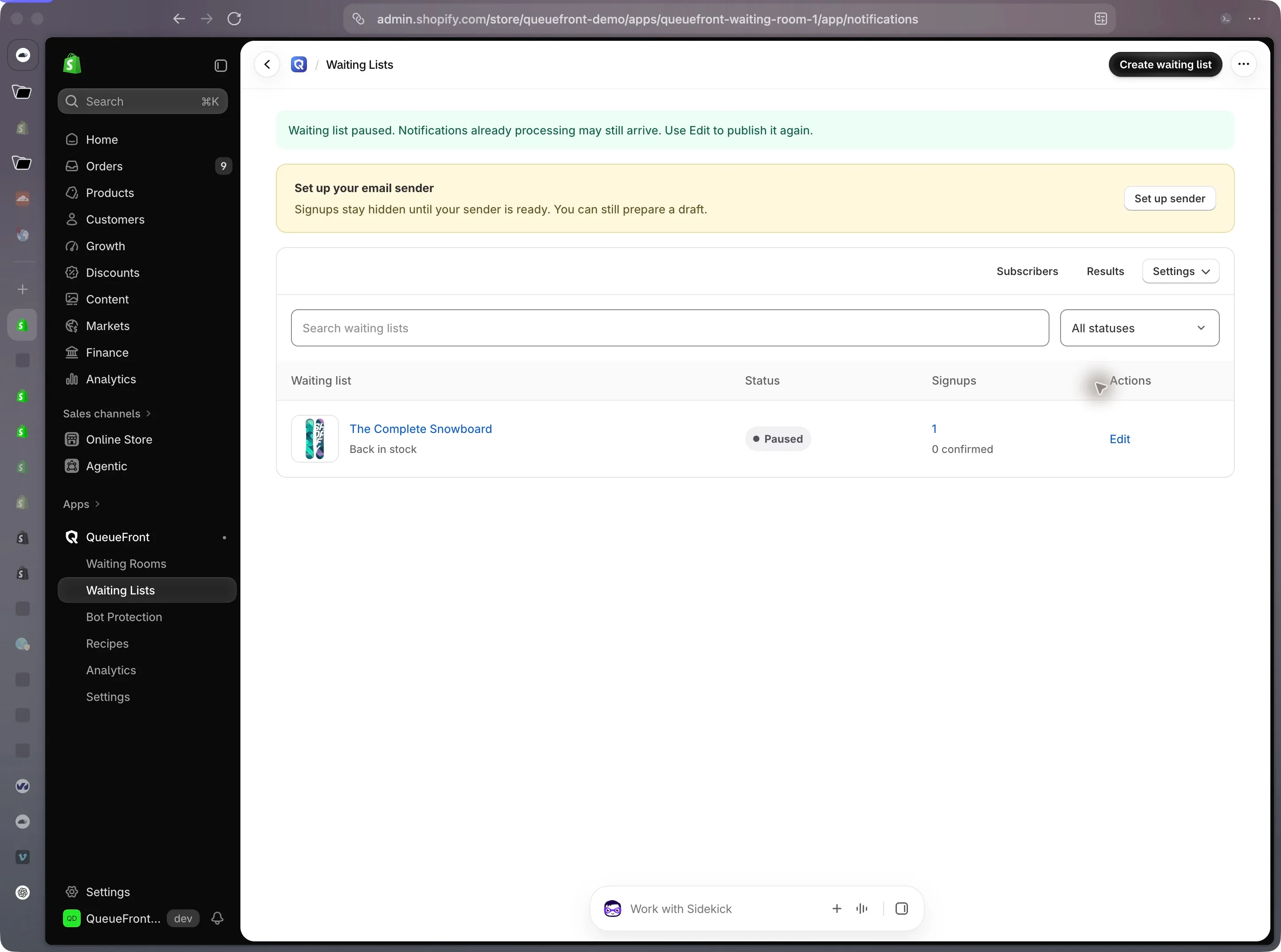
Demo capture, October 4, 2026. The banner illustrates a paused list and unfinished sender readiness at that moment; counts are test data.