
Find your way around QueueFront
Open QueueFront from Apps in Shopify admin. Check the store name before editing, especially when you work with multiple stores.
Where to go
Section titled “Where to go”| Area | Use it for |
|---|---|
| Dashboard | See current activity, upcoming rooms, and items needing attention |
| Waiting Rooms | Create a room, review its configuration, operate it, or inspect history |
| Waiting Lists | Collect product interest, edit signup/email content, and review subscribers |
| Bot Protection | Choose challenge behavior and review visitor activity or blocks |
| Recipes | Start from a suggested room/list configuration |
| Analytics | Review recorded room, list, and messaging results |
| Settings | Check store details, reply-to address, plan links, setup, and support |
The app title returns to the dashboard. Settings → Setup and support contains Waiting-room setup, Troubleshooting, Privacy and trust, and Help and resources.
Open an existing room
Section titled “Open an existing room”- Choose Waiting Rooms.
- Find the room in the relevant live, scheduled, draft, or history section.
- Open its name and check the status and protected scope.
- Use history pagination to find older rooms when needed.
- Use the room’s configuration and operating controls for that specific event.
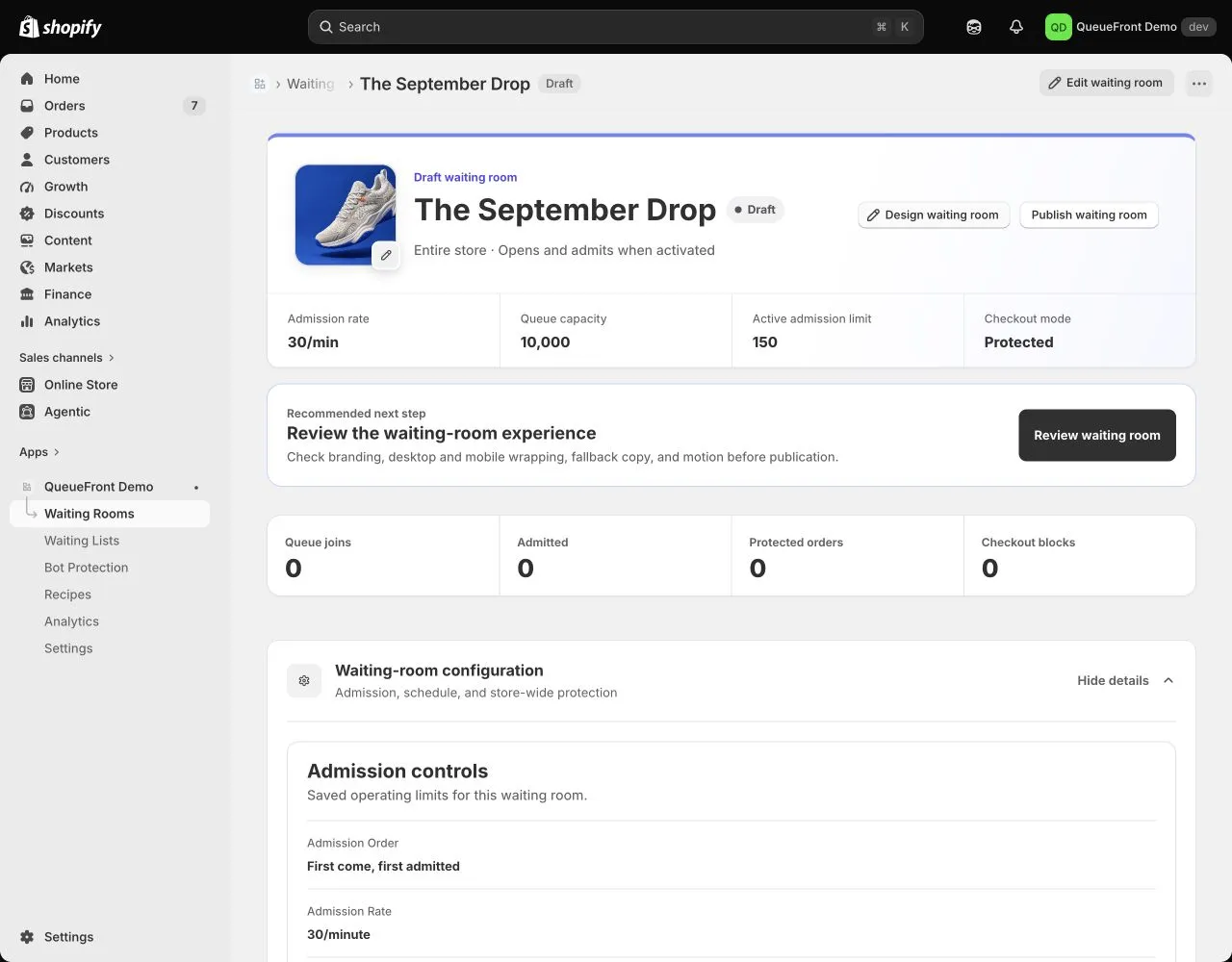
Demo room overview captured September 22, 2026. The layout is illustrative; follow current control labels in your app. Sample counts and settings are not recommended launch limits.
Understand what has actually happened
Section titled “Understand what has actually happened”- Draft: saved for preparation; saving it is not publication.
- Scheduled: published for a future opening; review pending-publication notices separately.
- Live/pre-queue: shoppers may be waiting before admissions start.
- Active: the room is admitting according to its rules.
- History: a completed or cancelled room; missing final results can still be pending recovery.
A dashboard count is a summary. Open the room when deciding whether to publish, pause, admit, or end it. The live-monitoring guide explains freshness and manual admission.
Save without losing work
Section titled “Save without losing work”Use the screen’s Save action and wait for success. If leaving opens an unsaved-changes prompt, save or deliberately discard your edits. Reopen important settings to verify persistence. If another tab changed the same room, refresh and compare before retrying; do not keep submitting an outdated form.