
Set up your email sender
Open Waiting Lists → Settings → Email sender (or the Email sender shortcut). You need a monitored store inbox and, for a custom domain, access to the domain’s DNS settings.
Use the managed sender
Section titled “Use the managed sender”- Enter the Sender name shoppers should recognize.
- Enter a monitored Reply-to address. Replies go there; it is different from the read-only From address.
- If the page shows Setup needed, use the offered verification check and resolve the reported issue.
- Decide whether to Require shoppers to confirm by email.
- When verified and ready to accept signups/send requested notifications, enable Show signup forms and send requested notifications.
- Choose Save sender preferences, reopen the page, and check the resulting state.
Sending off can mean the sender is verified but forms and sending remain disabled. That is a valid preparation state, not a verification failure. A published list still needs sender readiness and the sending preference enabled.
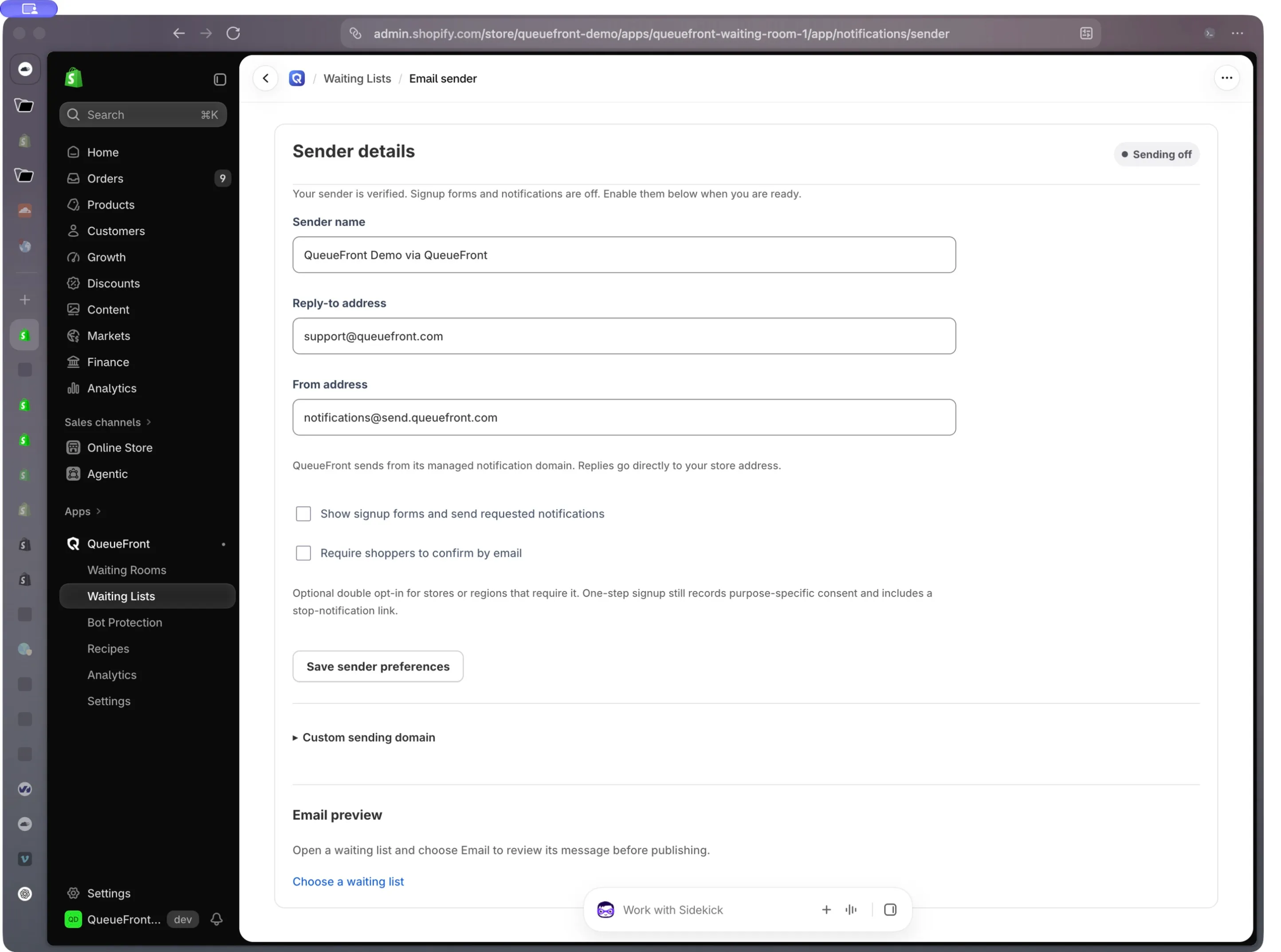
Demo capture, October 4, 2026. Sending is intentionally off. Use your own store’s reply-to address; the example does not indicate that your account is verified.
Add a custom sending domain
Section titled “Add a custom sending domain”Custom domains are offered on eligible plans. The managed sender remains the simpler option if you do not need a branded sending subdomain.
- Expand Custom sending domain and confirm your plan is eligible.
- Enter a dedicated Sending subdomain, such as
notify.example.com, and the local part of the From email address. - Choose Add sending domain.
- At your DNS provider, add the exact record types, names, and values shown by QueueFront. Do not replace unrelated mail records.
- Return and choose Check verification. Wait for the displayed verified state; adding records alone is not verification.
- Recheck the From address, reply-to, and sending preference, then run a controlled delivery test.
If records are unavailable, use the page’s check again or contact support. Do not invent DNS values. Verification can take time after a DNS change.
Preview and send a test
Section titled “Preview and send a test”Preview content in the list’s Email tab. When Send a test is available on the sender page, select the intended notification, enter an inbox you control under Send test to, and choose Send test deliberately. Confirm actual receipt and rendering. A test sends a real email; a preview does not.
Remove a custom domain
Section titled “Remove a custom domain”Choose Remove domain only when you intend to return to the managed sender. Read the confirmation: QueueFront removes the domain from the email provider and pauses signups until the managed sender is ready again. Waiting lists and subscribers are kept. Verify the new sender state before resuming.